How To Set Up Two Routers On The Same Network

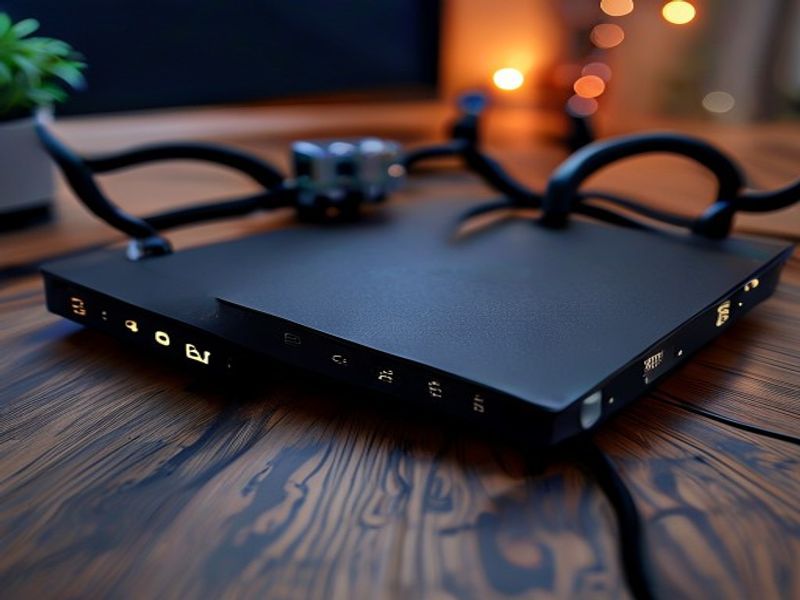
Setting up two routers on the same network can enhance your home WiFi coverage, improve connection speeds, and allow for better management of multiple devices. Whether you live in a modern new-build or a charming Victorian terrace, the process is quite straightforward if you follow the correct steps. As a UK WiFi expert, I’m here to guide you through the entire setup process for your home network, ensuring seamless connectivity across your devices.
In the UK, many households experience connectivity issues due to the layout of their homes. Older properties, such as Victorian terraces, often have thick walls that can obstruct WiFi signals, while new-builds may have open-plan designs that cause dead zones in certain areas. Setting up a second router can help eliminate these dead zones, ensuring that every corner of your home has reliable internet access.
This guide will cover everything you need to know about adding a second router to your existing network, including the benefits of doing so, essential equipment, and step-by-step instructions for configuration. Let's get started!
Key Takeaways
- You can set up two routers on the same network to enhance WiFi coverage and connectivity.
- It’s essential to configure the second router correctly to avoid IP address conflicts.
- Consider using Ethernet cables for a more stable connection between routers, especially in larger homes.
- Choose the right positioning for your routers for optimal WiFi coverage throughout your home.
What You Need to Know
Understanding the Role of Each Router
Before you dive into the setup process, it's critical to understand the roles each router will play in your network. Your main router, typically provided by your ISP (like BT, Virgin Media, or Sky), connects to the internet and assigns IP addresses to devices on your local network. The second router can serve as an access point, extending your network further and providing better coverage.
The Main Router
Your main router is the heart of your home network. It connects to the internet via your broadband service and manages all your connected devices. For example, if you have a BT Hub, it will manage your WiFi and wired connections.
The Second Router
The second router can either act as a standalone device or as an access point, depending on how you configure it. A standalone router can create a separate network, while an access point extends the range of your main router’s network.
Choosing the Right Equipment
When setting up a second router, compatibility and features should be considered. Most modern routers from brands like TP-Link, Netgear, and Asus will work well. Ensure that your second router has dual-band capabilities to support both 2.4GHz and 5GHz bands, as this will provide the best performance for all types of devices.
If you’re using Ethernet cables to connect the two routers, consider investing in high-quality cables to ensure the best connection speeds. For larger homes, powerline adapters can also be a viable option to extend your network without laying cables through your home.
Configuring IP Addresses
One of the most critical aspects of setting up two routers is ensuring that they don't conflict with each other on the network. Each device on your network needs a unique IP address.
Identify Your Main Router's IP Address: Most routers use a default IP address like 192.168.1.1 or 192.168.0.1. You can find this information in your router's settings or documentation.
Access the Second Router's Settings: Connect to your second router via WiFi or Ethernet and log in to its settings using the default IP address (usually found on the bottom of the router or in the manual).
Change the IP Address of the Second Router: Set the second router to a unique IP address within the same subnet as the main router. For example, if your main router's IP is 192.168.1.1, set the second router to 192.168.1.2.
Disable DHCP on the Second Router: DHCP (Dynamic Host Configuration Protocol) automatically assigns IP addresses to devices. Since your main router is already handling this, you'll want to disable DHCP on the second router to avoid conflicts.
Connecting the Routers
Now that you understand the basics and have configured IP settings, it's time to connect your routers.
Using Ethernet Cables
Connect the Routers: Use an Ethernet cable to connect one of the LAN ports of your main router to one of the LAN ports on your second router.
Position the Routers: Place your second router in a location that extends your WiFi coverage effectively. For example, if your main router is in the living room and you have a dead zone in the upstairs bedroom, position the second router halfway between the two.
Power On and Test: Turn on the second router and test your connections. Use a smartphone or laptop to connect to the WiFi network and check the signal strength in different areas of your home.
Using Wireless Connection (WDS)
If running cables is not an option, you can also connect the two routers wirelessly, but this is less stable than wired connections.
Enable WDS on Both Routers: Log into both routers and enable Wireless Distribution System (WDS) settings.
Connect the Routers: Enter the MAC address of your main router into the second router's WDS settings.
Test the Connection: After saving the settings, test your connection to ensure that devices connected to the second router can access the internet.
Cost Overview
Setting up two routers can vary in cost, depending on whether you purchase a new router or use an existing one. Below is a cost overview of typical equipment you may need:
| Item | Description | Estimated Cost (GBP) |
|---|---|---|
| Main Router | Existing ISP router | £0 (included with ISP) |
| Second Router | Dual-band router | £50 - £150 |
| Ethernet Cables | For wired connections | £5 - £20 |
| Powerline Adapters | For extending network over power lines | £30 - £100 |
| Total | Cost range for additional equipment | £85 - £270 |
FAQ
Q1: Can I use any router as a second router?
Yes, you can use any router as a second router as long as it supports the necessary features and can be configured properly.
Q2: Will setting up two routers slow down my internet speed?
If configured correctly, having two routers can actually improve your network's performance by providing better coverage and managing multiple devices efficiently.
Q3: How do I know if my second router is working properly?
You can check the signal strength and internet speed using a device connected to the second router. You should also be able to access the router’s settings through its IP address.
Q4: What is the best positioning for my second router?
Position your second router in a central location within your home, ideally halfway between the main router and the areas where you need better signal strength.
Q5: Can I connect the second router wirelessly?
Yes, you can connect the second router wirelessly using WDS, but a wired connection is recommended for better stability and speed.
For more details on WiFi setups, visit our blog at uni-blog.vercel.app.
Final Thoughts
Setting up two routers on the same network can significantly enhance your home's WiFi coverage, providing reliable internet access in every corner of your property. By following the steps outlined in this guide, you can create a more robust network that caters to your family's connectivity needs. Whether you’re streaming, gaming, or working from home, a well-configured dual-router setup can make all the difference.
Feel free to reach out if you have any questions or need assistance with your setup.
About the Author
Gary Pearce is a CCTV, WiFi, and Home Security Specialist based in Leeds. With years of experience in the field, Gary is dedicated to providing top-notch advice and solutions for all your home networking needs. For inquiries, you can reach him at 07830 638 337.
Check out this technical guide — Click here