Can I Use Multiple Routers On The Same Network
Published: 2026-05-28 | By Gary Pearce | Category: WiFi


If you are a UK homeowner struggling with WiFi dead zones, weak signals on upper floors, or patchy internet in a garden office, adding a second router to your existing network is one of the most effective and affordable solutions available. This comprehensive guide explains exactly how to set up two routers on the same network, what equipment you need, and the best configuration for British homes.
Why UK Homes Need Multiple Routers
British homes present unique challenges for WiFi networks. Solid brick walls, stone floors, lead-lined ceilings in period properties, and multiple storeys all block wireless signals. A single router, even a high-end model from your ISP like the Sky Q Hub, BT Smart Hub 2, or Virgin Media Hub 5, often cannot cover an entire three-bedroom Victorian terrace, let alone a larger detached property or a home with a garden office.
Adding a second router solves several common problems that UK homeowners face:
- Eliminates dead zones in upstairs bedrooms, basements, loft conversions, and rear extensions
- Provides dedicated bandwidth for home offices and home schooling — essential for video calls and online learning
- Separates guest WiFi from your main network for improved security and privacy
- Reuses old equipment — that BT Home Hub sitting in your cupboard works perfectly as a secondary access point
- Extends coverage to outbuildings such as garden offices, summer houses, and detached garages
- Costs nothing if you already have a spare router — just a £12 Ethernet cable
- Reduces electronic waste by giving old hardware a second life
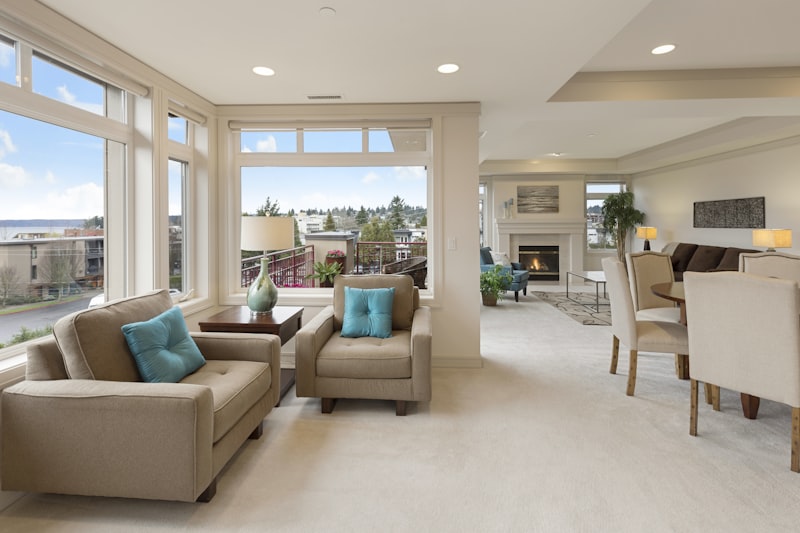
Typical UK property: solid brick walls and multiple storeys make single-router coverage challenging
According to a 2025 Ofcom report, the average UK household now has 13 connected devices, up from 8 in 2020. With smart TVs, gaming consoles, security cameras, smart speakers, phones, tablets, and laptops all competing for bandwidth, distributing the load across two access points makes practical sense.
Connection Methods Compared
The way you connect your two routers has a significant impact on performance. Here is a detailed comparison of the four main methods available to UK homeowners:
| Connection Method | Maximum Speed | Typical UK Cost | Reliability | Installation Difficulty | Best For |
|---|---|---|---|---|---|
| Ethernet Cat6 | 1 Gbps (1000 Mbps) | £12–25 for 10m cable | Excellent | Easy — plug and play | Best overall choice for any property |
| Powerline Adapters | 300–600 Mbps | £35–60 per pair | Good — depends on house wiring | Very easy — 5 minutes | Homes where cable runs are impractical |
| MoCA over Coaxial | 1 Gbps (2500 Mbps with 2.5) | £60–90 per adapter | Excellent | Medium — needs existing TV coax | Homes with Sky or Freeview coax already installed |
| Wireless Bridge | 100–300 Mbps | Free (uses existing hardware) | Fair — affected by walls and interference | Medium — requires careful positioning | When no other option is viable |
Ethernet — The Gold Standard for UK Homes
For the best possible performance, connecting your second router via Ethernet cable is the recommended approach. Cat6 or Cat6a cable supports gigabit speeds up to 100 metres — more than enough for any UK property. Unlike WiFi, Ethernet is not affected by interference from neighbouring networks, microwave ovens, or thick walls.
Running Ethernet Cable in UK Homes
Running cable in a British house is more straightforward than most people think. You have several options:
- Under floorboards — lift carpets in the room above, feed cable through floor joists using a flexible fishing rod
- Through cavity walls — drill a small hole behind the skirting board, use a cable fishtape to pull through the cavity, and emerge in the room above or below
- Along skirting boards — use mini trunking (D-line or similar, available from Screwfix or B&Q for £5–10) for a tidy, painted finish that blends with your decor
- Through loft spaces — ideal for dropping cable down internal walls into upstairs rooms
- External grade cable — run Cat6a outdoor-rated cable along the exterior wall in weatherproof conduit

Cat6 Ethernet cable with RJ45 connectors — the backbone of any reliable dual-router setup
Cost Breakdown
| Item | Typical UK Price | Where to Buy |
|---|---|---|
| Cat6 Ethernet cable 10m | £12–18 | Amazon UK, Screwfix, Toolstation |
| Cat6a Ethernet cable 10m (shielded) | £18–28 | Amazon UK, B&Q |
| Mini trunking 2m length | £5–10 | Screwfix, B&Q, Toolstation |
| RJ45 crimping tool + connectors | £15–25 | Amazon UK, Currys |
| Professional cable installation (per drop) | £50–100 | Local network installer |
Powerline Adapters — The Cable-Free Alternative
If running Ethernet cable sounds too daunting, Powerline adapters are an excellent alternative for British homes. These devices send data through your existing electrical wiring, giving you a network connection from any mains socket without drilling holes or lifting floorboards.
What to Look For
When buying Powerline adapters in the UK, check for these features:
- AV2000 standard — provides up to 2000 Mbps theoretical speed (real-world: 300–600 Mbps)
- Pass-through socket — so you do not lose the mains socket for other appliances
- Gigabit Ethernet port — essential for full-speed wired connections
- Plug-and-pair button — simple one-button security pairing
- Energy-saving mode — reduces power consumption to under 1W when idle
TP-Link and Devolo are the most reliable brands, available at Currys, Amazon UK, and B&Q. Avoid budget brands — they often use older standards with poor performance.

Powerline adapters: plug into existing sockets for instant wired networking throughout your home
Step-by-Step Configuration Guide
Once your two routers are physically connected, you need to configure the second router. Follow these steps carefully — missing one can cause IP conflicts.
Step 1: Access the Second Router Settings
Connect a laptop or computer to the second router using an Ethernet cable. Open a web browser and enter the router IP address — this is usually printed on a sticker underneath the router. Common addresses for UK ISP routers:
- 192.168.0.1 — Sky, BT, TalkTalk
- 192.168.1.1 — Virgin Media, Asus, TP-Link, Netgear
- 192.168.2.1 — Some Netgear and D-Link models
- 192.168.100.1 — Some Huawei and Technicolor routers
Step 2: Disable DHCP Server
Only ONE device on your network should assign IP addresses. Navigate to LAN or Network Settings and find the DHCP Server option. Disable it on the SECOND router. The main router will handle all IP address assignments. This is critical — if both routers try to assign IPs, devices will get conflicting addresses and lose connectivity.
Step 3: Assign a Static IP Address
Give your second router a permanent IP address on the same subnet as your main router. For example, if your main router is 192.168.1.1, set the second router to 192.168.1.2. Make sure this address is outside your main router's DHCP pool range to prevent conflicts.
Step 4: Configure WiFi Settings
For the best user experience, set the identical WiFi name (SSID) and password on both routers. This allows your phone, laptop, and smart home devices to roam seamlessly between the two routers without dropping the connection. Your devices choose whichever signal is strongest.
Important: Use the exact same security settings — WPA2-PSK or WPA3 — and the same WiFi channel width (20/40/80 MHz) on both routers for compatibility.
| Setting | Main Router | Second Router |
|---|---|---|
| SSID (WiFi Name) | MyHomeWiFi | MyHomeWiFi |
| WiFi Password | SecurePass123 | SecurePass123 |
| Security Protocol | WPA2-PSK | WPA2-PSK |
| WiFi Channel | Auto (e.g. channel 6) | Auto (e.g. channel 11) |
| DHCP Server | Enabled (manages all IPs) | DISABLED |
| LAN IP Address | 192.168.1.1 | 192.168.1.2 |
| Subnet Mask | 255.255.255.0 | 255.255.255.0 |
Step 5: Test and Optimise Position
Walk around your property with a WiFi analyser app (free on Android from the Play Store or on iOS using Airport Utility with scan mode enabled). Check signal strength in every room. Adjust the position of your second router for optimal coverage. In most UK homes, placing the second router halfway between the main router and the problem area works best — typically on a landing or in a hallway for central coverage.
Common Issues and Troubleshooting
IP Address Conflicts
If devices intermittently lose connection or get "IP address conflict" errors, double-check that DHCP is completely disabled on the second router. Also ensure the static IP you assigned is outside the main router's DHCP range (typically 192.168.1.10–192.168.1.100 or similar).
Slow Speeds on One Router
Verify you are using at least Cat5e or Cat6 Ethernet cable between routers. Older Cat5 cable only supports 100 Mbps. If using Powerline adapters, plug them directly into wall sockets — not extension leads or surge protectors — as these filter out the high-frequency signal.
Devices Not Roaming
Some older devices (WiFi 4 or earlier) stick to one router even when the other has a stronger signal. This is normal behaviour. Modern WiFi 5 (802.11ac) and WiFi 6 (802.11ax) devices handle roaming much better. Consider upgrading older adapters if device roaming is important.
ICO and UK Legal Compliance
When setting up a home network with multiple routers, you should be aware of UK data protection considerations. The Information Commissioner's Office (ICO) requires that home network users take reasonable steps to secure their WiFi. Use WPA2 or WPA3 encryption, change default admin passwords on all routers, and keep firmware updated. These measures also protect your neighbours' networks from potential interference or security risks.
Key Takeaways
- Two routers on the same network work perfectly when configured correctly — thousands of UK homes use this setup
- Disable DHCP on the second router to prevent IP conflicts — this is the most common mistake
- Ethernet connection via Cat6 provides the best speed and reliability
- Use the same SSID on both routers for seamless device roaming throughout your home
- UK ISP routers (Sky, BT, Virgin, TalkTalk) all work well as the primary router
- Total setup takes under 30 minutes with basic networking knowledge
- Reusing an old router costs nothing and reduces electronic waste — good for your pocket and the planet
- Powerline adapters are a good alternative when Ethernet is not practical
- For homes larger than 3,000 sq ft, consider adding a third access point for complete coverage
- Always use WPA2 or WPA3 encryption and change default passwords for security
Frequently Asked Questions
How do I set up two routers on the same network? To set up two routers, connect the second router to the first via an Ethernet cable using LAN-to-LAN ports. Disable the DHCP server on the second router and assign it a static IP address within your main router's subnet, such as 192.168.1.2. Configure the same WiFi SSID and password on both routers for seamless roaming throughout your home. For a complete step-by-step walkthrough with screenshots, see our detailed guide on how to set up two routers by Gary Pearce.
Will two routers slow down my internet speed? No — two routers will not slow down your internet speed. Your broadband connection speed is determined by your ISP package and line quality, not the number of routers on your network. In fact, adding a second router can improve perceived performance by distributing the WiFi load across more access points, reducing congestion. The key is to use Ethernet or Powerline for the backhaul connection between routers. For more detailed information on this common misconception, read our guide on do two routers slow down internet speed by Gary Pearce.
Can I use a second router as a WiFi extender? Yes, absolutely. Configuring an old router in Access Point (AP) mode effectively turns it into a powerful WiFi extender. This approach is significantly superior to buying a dedicated WiFi extender because AP mode uses an Ethernet backhaul connection, providing full bandwidth rather than the 50% reduction you get from wireless extenders. Any router with WiFi N (802.11n) or newer will work. Learn more in our guide on using a second router as WiFi extender by Gary Pearce.
Should both routers have the same WiFi name? For most UK homes, using the same SSID (WiFi name) on both routers provides the best user experience. Your phone, laptop, and smart home devices will automatically connect to whichever router has the strongest signal, creating a seamless whole-home network. If you prefer manual control over which router specific devices connect to — perhaps to dedicate one router for gaming — use different SSIDs for each. Read more in our guide on same SSID or different for two routers by Gary Pearce.
What is the best way to connect two routers? Ethernet cable (Cat6 or Cat6a) is by far the best way to connect two routers. It provides full gigabit speed, the lowest possible latency (under 1ms), and is completely unaffected by walls, electrical interference, or neighbouring WiFi networks. If running Ethernet cable is not practical in your home — for example in a listed building or rented property — Powerline adapters are the next best option, followed by MoCA adapters if you have existing TV coaxial cables. Wireless bridging is the least preferred due to reduced speeds and added latency. See our comprehensive comparison guide on the best way to connect two routers UK by Gary Pearce for full details.
Table of Contents
- Why UK Homes Need Multiple Routers
- Connection Methods Compared
- Ethernet — The Gold Standard for UK Homes
- Powerline Adapters — The Cable-Free Alternative
- Step-by-Step Configuration Guide
- Common Issues and Troubleshooting
- ICO and UK Legal Compliance
- Key Takeaways
- Frequently Asked Questions
Article by Gary Pearce — CCTV, WiFi, and Home Security Specialist with 15+ years of UK installation experience. Based in Leeds, covering West Yorkshire and nationwide. Need help with your home network? Call 07830 638 337 or visit our CCTV Systems Guide for more UK security resources. | GitHub